Buying Guide
Presentation and Display RFQ checklist for business buyers
By Cusket Editorial · Published · Updated
A practical RFQ checklist for business buyers sourcing presentation displays, projectors, room screens, installation, and support.
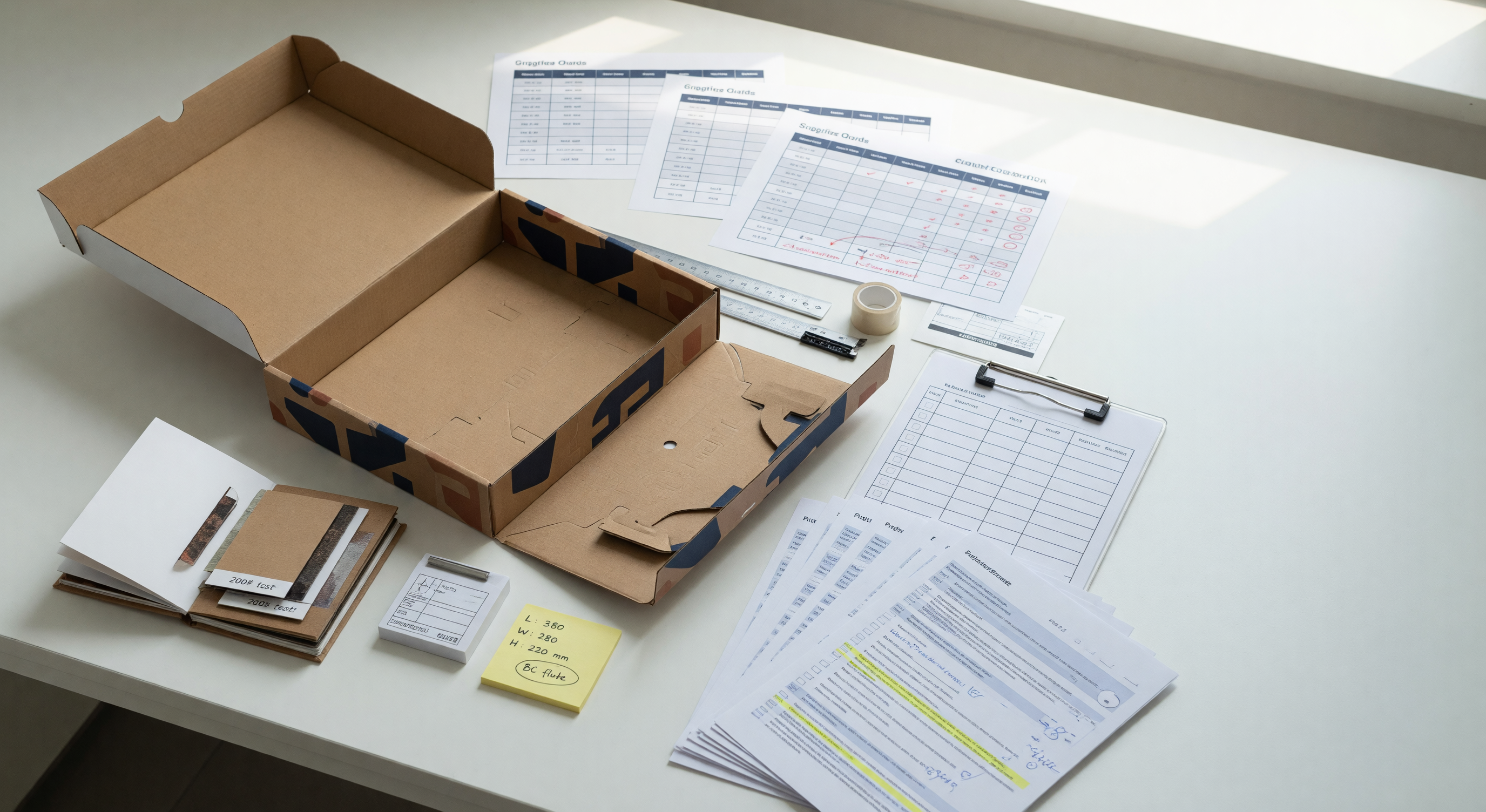
Define the room, audience, and viewing distance before asking for quotes
A strong presentation and display RFQ starts with the room, not the hardware. Before you compare projectors, commercial displays, mounts, or collaboration screens, describe where the system will be used and who needs to see it. A training room, a lobby display, and an executive meeting room with remote participants all create different requirements.
For business buyers browsing presentation and display options, include room dimensions, typical and maximum audience size, seating layout, ceiling height, window exposure, and whether people need to read detailed spreadsheets or only view slides and video. If the display will be used in several rooms, say so early. Suppliers can then recommend mobile stands, portable projection, or standardized display sizes instead of quoting a fixed installation that only works in one space.
Viewing distance affects screen size and resolution. A small 4K screen may look sharp up close but feel unusable from the back of a conference room. A large display may solve visibility but require a stronger mount or wall structure review.
Specify the content sources and connection workflow
Many RFQs fail because they list a display size but not how people will connect to it. State the daily workflow: laptop at the table, wireless sharing, USB-C single-cable connection, fixed room PC, video conferencing appliance, media player, or a mix of these.
Write down source devices and operating systems. If guests present often, ask for connection options that do not require admin rights or complex network setup. If the display is part of a meeting room, confirm whether audio, camera, microphone, and screen sharing must work together.
Use this connection checklist in the RFQ:
| Requirement | What to state | Why it matters |
|---|---|---|
| Primary source | USB-C, HDMI, room PC, media player, or wireless sharing | Prevents wrong input counts |
| Guest access | Internal users, guests, or public presenters | Changes security needs |
| Conferencing | Teams, Zoom, Google Meet, or none | Affects camera and audio |
| Network needs | Wired LAN, Wi-Fi, isolated network, or offline use | Flags IT dependencies |
| Control method | Remote, keypad, touch panel, or automatic startup | Shapes training needs |
If you are also sourcing laptops, cameras, or accessories, separate those items clearly or compare them through consumer electronics so display suppliers do not hide unrelated equipment inside one vague line item.
Ask for commercial-grade details, not just screen size
For office and public business environments, consumer display specs are rarely enough. Ask suppliers to state whether the quoted screen is commercial grade, expected operating hours, brightness, warranty coverage, orientation support, and whether it is rated for continuous signage use. A boardroom screen used a few hours per day has different needs from a reception screen running twelve hours daily.
Brightness should match ambient light. Rooms with large windows or bright retail lighting may need higher brightness, anti-glare treatment, or a different mounting position. For projectors, ask for brightness, throw distance, screen type, lens shift, and lamp or laser light-source life. For interactive displays, include touch points, stylus support, palm rejection, and whether the software requires paid licenses.
Separate installation, mounting, and site readiness
Installation is often where display projects become more expensive than expected. Your RFQ should separate hardware supply from site work, installation labor, cabling, mounting, testing, and training. If the supplier must visit the site before final pricing, ask whether the site survey is included or quoted separately.
Include wall type, ceiling type, power outlet locations, cable path constraints, lift access, working hours, and building rules. For leased offices, confirm whether drilling, ceiling work, or visible cable raceways need landlord approval. For public areas, ask about tamper-resistant mounting and cable security.
A practical site-readiness checklist should include:
- Wall or ceiling structure is suitable for the proposed load.
- Power outlets are available near the display or projector position.
- Network ports or Wi-Fi coverage are available where needed.
- Cable paths are approved and visually acceptable.
- Delivery route, elevator size, and installation working hours are known.
- Facilities or IT can attend installation and acceptance testing.
For supporting supplies such as labels, cable organizers, markers, cleaning kits, or room signage, use office supplies as a separate comparison area so the display RFQ stays focused.
Compare quotes with lifecycle cost and support in mind
The lowest display quote is not always the best business purchase. Compare total delivered cost, installation assumptions, warranty length, response time, replacement policy, and spare parts availability. Ask suppliers to list exclusions plainly, including electrical work, network configuration, wall reinforcement, after-hours installation, disposal of old equipment, and user training.
If the display supports sales presentations, client meetings, or customer-facing signage, downtime has a business cost. Ask how support requests are handled, whether remote troubleshooting is available, and what happens if a panel fails during the warranty period. For multi-site buyers, request a standardized configuration and quote template so future locations can repeat the purchase.
Use Cusket search to compare product families and suppliers, then shortlist relevant items through products before requesting final commercial terms. Keep alternates visible: a supplier may propose a smaller display with better brightness, a larger display with simpler installation, or a projector system for a room where wall mounting is not possible.
Include acceptance tests before approval and payment
Your RFQ should define how the buyer will decide that the job is complete. Acceptance tests should match real usage. For a meeting room, test laptop connection, wireless sharing, audio output, camera framing, microphone pickup, and startup behavior. For signage, test scheduling, playback, brightness, orientation, and restart recovery after power loss.
Ask for handover documentation: model numbers, serial numbers, warranty terms, admin credentials if applicable, cable diagram, cleaning guidance, and basic user instructions. If the installation includes printed room labels, wall instructions, branded signage, or QR codes, source those separately through custom printing and keep artwork approval outside the display hardware acceptance step.
Before final approval, capture photos of the installed equipment, test each input, and confirm who owns ongoing administration. For unclear purchase or support questions, contact Cusket support before committing to a repeat purchase pattern.